
Menu
User manual handbook
Description
pareIT is a service developed to help you categorize case files and analyze medical records. Within a few hours, our smart solution will categorize case files, summarize medical records and extract the important information. Once the analysis is done, a case summary of the medical information will be generated and will also be available for download. This manual aims to help you navigate our smart product.
General Idea
Create a Case for each specific Client/Case – upload documents related to this Case, choose a package that will cover your needs in terms of the number of pages of uploaded documents, and enjoy the results of summarized information about this specific Case.
First, let us sign up or log in.
Sign up
If you are a non-registered user, go to “Sign up” in the upper right corner of the landing page. Follow the instructions, enter the required information and create a password.
For security purposes, we will need to confirm your phone number and email upon sign up. You will receive a code to your phone number as well as an email from info@pareit.com.
For security purposes, we will need to confirm your phone number and email upon sign up. You will receive a code to your phone number as well as an email from info@pareit.com.
Note: If you have not received a code, you can request the system to send it to you again by clicking on the “Send again” button.
On sign up, you will be asked to select the billing frequency for your subcription.
Note: Upon your first subscription, you will get 7 days for free. If you only which to try out pareIT, you still need to proceed with subscription and cancel it before the 7 days of free trial.
Login
Once your are all set up you can start using our system.
For security purposes, you will be asked for a to two-factor authentication sent to your phone number every time you log into pareIT.
Note: If you have not received a code, you can request the system to send it to you again by clicking on the “Send again” button.
Start using the system – Main Space
Upon Sign Up/Log in, you are going to land on your personal pareIT space. Here you will see your active cases. You can view your active case as a list or as a board sorting by status (created, analyzing and analyzed). On the right hand side, you will find the cases requiring your attention.
On the left hand side, you can see the navigation menu where you ca find your archived cases and the ability to create a new case.
On the upper right side, you will find your notifications as well as you personal settings icon.

Case Management
Create Case
To start analyzing your case documents, you will want to create a Case first.
To create a Case, select “Create New Case” on the left menu or the big button on your active case page. You can always rename a Case. To do so, you will need to go to the needed Case page and click on three dots next to the case name and choose “Rename case”.
Inside each Case you will find the patient profile on the right hand side. Under the patient profile, you will find package information.

Rename Case
To rename a Case, first select the Case you want to rename from your list. Next, click on the three dots next to the Case name and select the “Rename” option from the dropdown menu. Enter the new name for your Case, then press Enter or click outside the input field to confirm the new name. Please note, it may take a moment for the Case to update with the new name.

Case Sharing
Case Sharing allows users to share a case with others both within and outside pareIT. Users, except those with view-only access, can enter an email address to send invites via email. This dialog box also enables permission management for the shared case. If the entered email is not already in the pareIT system, the new user will be redirected to the signup screen to create an account before accessing the case.

Transfer Ownership
You can transfer ownership of a case to any user, whether they are an existing pareIT user or not. The current owner can transfer ownership to any other user within the pareIT application, and the previous owner will retain view-only access to the case by default.

Archive Case
You can move a case to archives to keep your active case list organized and clutter-free. To archive a case, select the case you want to move and choose the “Archive” option. Archived cases are stored separately, ensuring they are easily accessible when needed but do not interfere with your ongoing work. You can always retrieve archived cases if you need to revisit.

Upload documents
Click on the “upload documents” button, or just drag and drop a PDF document in the box.
If you already purchased a package that covers the number of pages in the document(s) to be uploaded, the analysis will start automatically.
Otherwise, after your documents are uploaded, the system will trigger a “Buy a package” pop-up with the minimum required package recommended to cover your pages.
Keep in mind that once a document has been analyzed, the pages will be deducted from the package even if you delete this document.
Note: We are HIPAA compliant, therefore you should not worry about the security of your documents.
Document analysis
After a document is uploaded, and you purchased the necessary package for the case, analysis will start.
Once the file has been analyzed, you will receive a notification that will be depicted in the bell in the upper right corner
Feel free to leave the page or switch to another case – the system will proceed with the analysis.
There could be several analysis statuses: “Analyzed”, “Failed”, or “Uploaded”:

Add payment method
The card you used for the subscription will be present as default when buying your first package. You can add a card at any time and decide which you want to use for subscription and/or packages by going to your account setting (upper right button).
The system accepts the payments made with Visa, American Express, Discover, UnionPay, Diners Club, and Mastercard (2-series).
Removing a payment method
Click on your profile in the upper right corner to access your Account Settings. After that, select “Case Billing” or “Subscription Billing” and click on the trash can icon on the card, which you want to remove.
Analysis Process
After a successful analysis, the system will extract the Patient’s personal information and physical parameters, which could be seen right in the case. You can always edit this information by clicking on the pencil next to the information you wish to edit.
As a result of the analysis, your document can be either split into parts depending on the content or analyzed as one. It can also be categorized into different folders on the basis of the document type such as Medical Records, Medical Bills, Incident Report, Testimonies, etc. To check the folders, go to the bottom of the case page. To see the main information about the case, you could always view the case summary.
View case summary
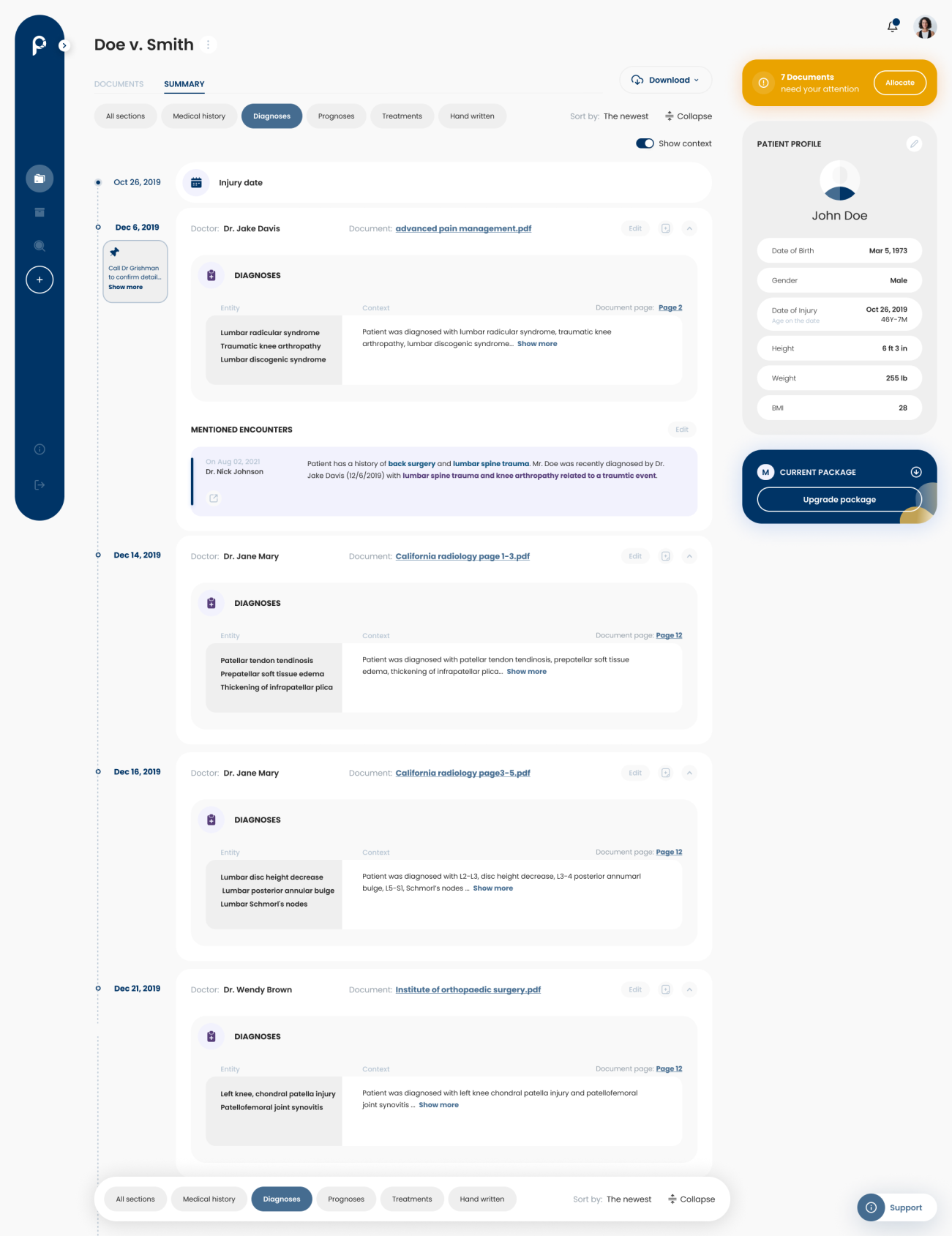
A case summary represents the most important information in your case.
It includes the Patient’s information, a Timeline where the medical records are organized in chronological order, you can filter the information by selecting/deselecting the tabs at the top (Medical History, Diagnoses, Treatments, Prognoses and Handwritten).

Note: a case summary is based on all the analyzed documents in your case. If you remove any document, which has already been analyzed, it will be removed from the case summary
You can expand the timeline to see the information. You can also choose to hide context. You can edit and delete any encounter as well as add notes.
Download case summary
To download a case summary, go to the needed Case summary page and click the “Download” button. You will then be asked to chose the format the the information you wish you include.
Note: DOCX files can be opened with Word 2007 and lateral versions but not with the earlier versions of MS Word. If you use the earlier Word version, there is a possibility the document will not be properly displayed.
Case archiving
Our system also provides you with the possibility of archiving cases. For this purpose, open a case and click on the three dots near the case name in the upper left corner. Then choose “Move to Archive”.
You can recover your archived case anytime. To do this you should:
- Go to “Archived Cases” in the left sidebar menu.
- Choose the case you want to revert back to active.
- Go into the case and click on the three dots near the case name in the upper left corner.
- Choose “Move to active”
Uploading handwritten documents
You can upload not only typed documents but handwritten ones as well. After the analysis, any handwritten docs will go to the “Handwritten” tab in View Case Summary.
Account settings
As a User, you can always change your account settings by clicking on your profile picture in the upper right corner.
Troubleshooting
If after reading this manual you still have any questions, feel free to contact us by clicking on the “Support” button in the right lower corner. Just leave a ticket, and we will get back to you with help.
FAQ
What can I expect when the analysis is completed?
Once the analysis is complete, pareIT will categorize all records into relevant folders and extract essential patient identifiers. It will also create a chronological timeline of all records. Additionally, a comprehensive patient case summary will be generated, including diagnoses, prognoses, interventions, medical history, and handwritten records. The extracted data’s corresponding document and page will be highlighted for easy reference.
How accurate is pareIT?
As an AI language model, pareIT has undergone extensive training on millions of medical data points. As a result, recent tests have shown accuracy levels up to 98%! However, the accuracy will vary depending on the type and clarity of the medical records. While pareIT continues to improve over time, we recommend cross-checking the results to ensure nothing is missed.
What document formats can I upload?
You can upload PDF documents to pareIT for analysis.
What type of documents does pareIT analyze?
pareIT specializes in analyzing medical records. While it categorizes various legal documents like depositions and police reports, it will only provide analysis for medical records. Non-medical documents will be appropriately categorized.
What am I paying for?
You are paying for document categorization and medical record analysis. The cost is based on the number of pages being analyzed. For more detailed information, check our User Manual. If you have any issues not covered in the manual, feel free to reach out to us via the Contact Form below or submit a ticket to our Customer Support team by clicking “Support” in the lower right corner.
If I upload documents for more than one patient in a single case, which patient’s data will be added to the dashboard?
The dashboard will prioritize the patient whose name appears most frequently in the analyzed documents.
Will the system extract ICD, CPT, NDC codes?
The system identifies medical entities and appends relevant codes. It extracts explicitly mentioned codes or assigns appropriate ones autonomously but does not recognize internal codes.
© PareIT, LLC, 2025
-
User ManualUser Manual
-
Terms of ServiceTerms of Service
-
Privacy PolicyPrivacy Policy
pareIT is owned and operated by pareIT LLC. pareIT utilizes constantly changing Artificial Intelligence based technology to sort medical and legal case files, as well as extract information from medical records, offering speed and accuracy to the best of our abilities. This service is provided according to the limitations set forth in our Terms of Service. By using our System of Services, you acknowledge that you have read and agree to be bound by our Terms of Service.